


Web OS NAS
NAS, now on your own computer,
and smarter
As long as you have your PC, you can now reach your files from anywhere.
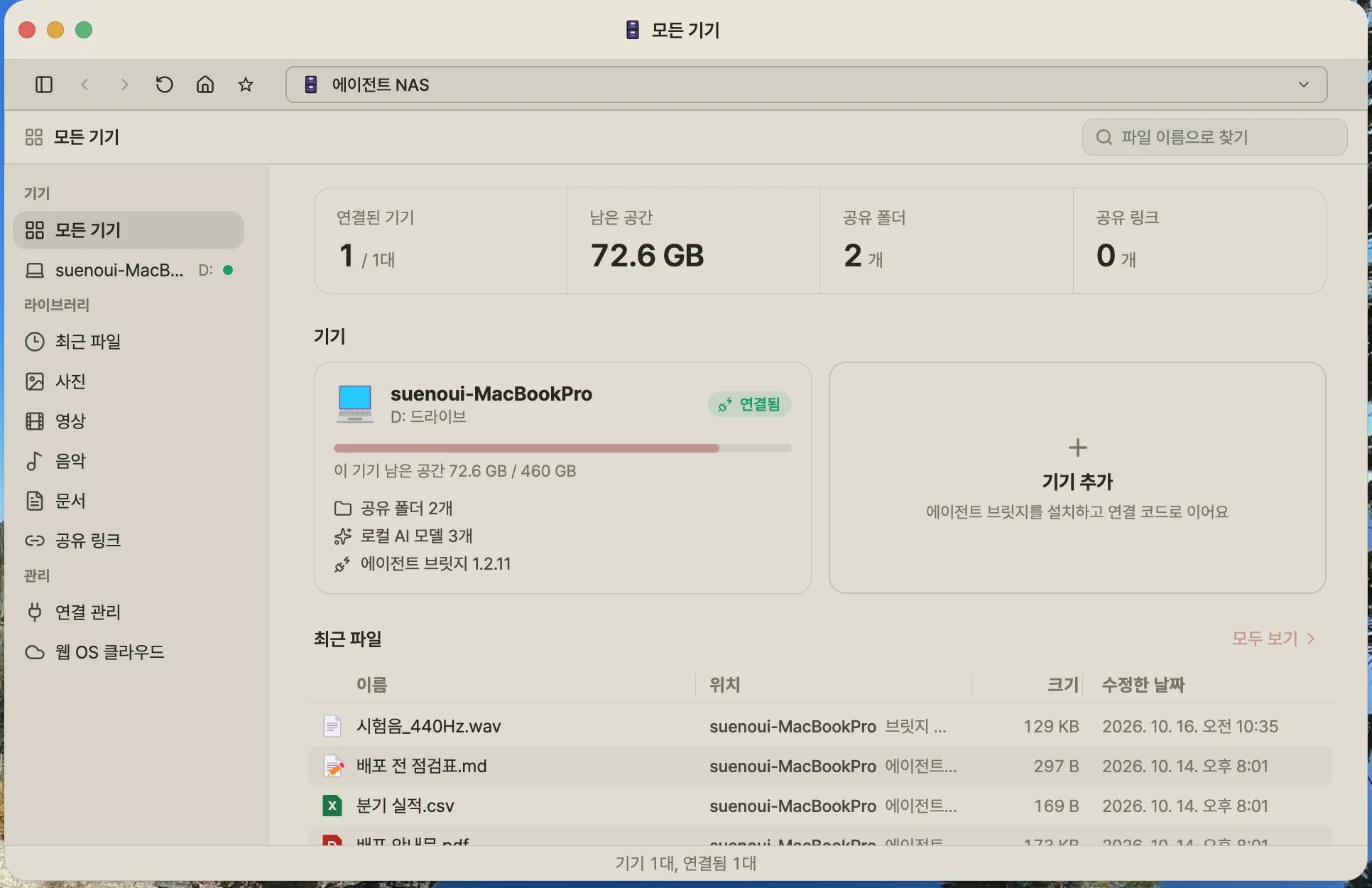
Anywhere
Your home PC is your cloud
With no NAS hardware, the Mac or Windows PC you already use becomes your storage. No router settings, port forwarding or VPN — just open a browser to reach your home PC’s folders.
How to set up Web OS NASNo NAS to buy. The Mac or Windows PC you already use becomes your storage, with no NAS hardware needed. You get as much space as its disk holds.
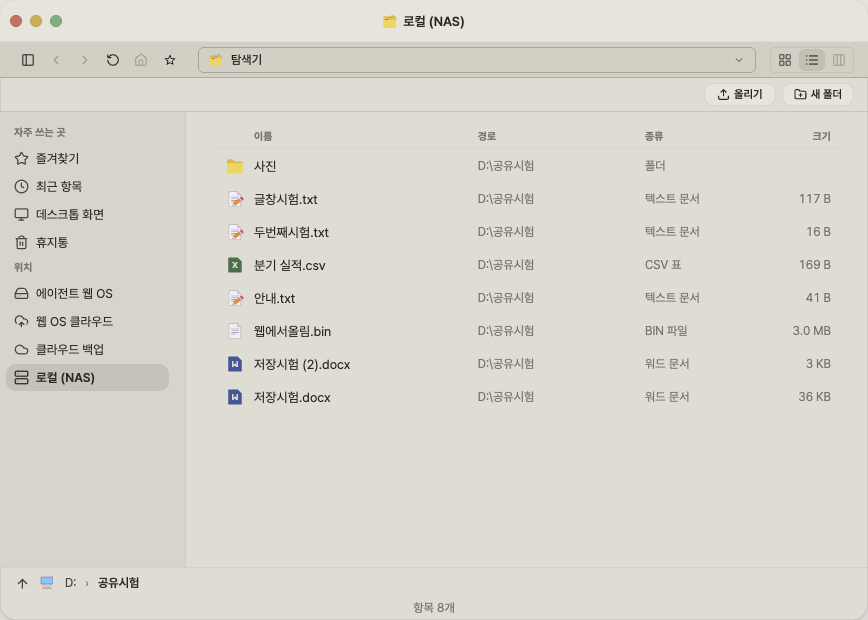
Your home folders, even at a PC café. From a PC café, the office or your phone, just open a browser to reach folders on your home PC and send or receive files.
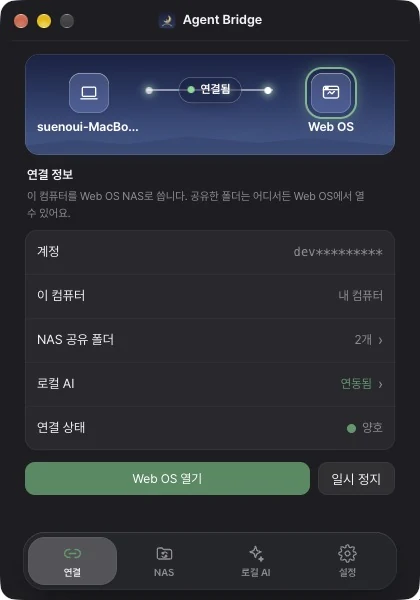
No port forwarding, no VPN. No router settings, port forwarding or VPN. Just install Agent Bridge and sign in with your Web OS account.
Files stay on your PC. We don’t store your shared folder files on our servers. They’re sent straight from your PC each time you open them.
Photos, sync and sharing
Gather, sync, send
Scattered photos come together in monthly previews, and the “Agent Bridge” folder on your PC stays in sync with Web OS cloud. Files go out with a link that expires.
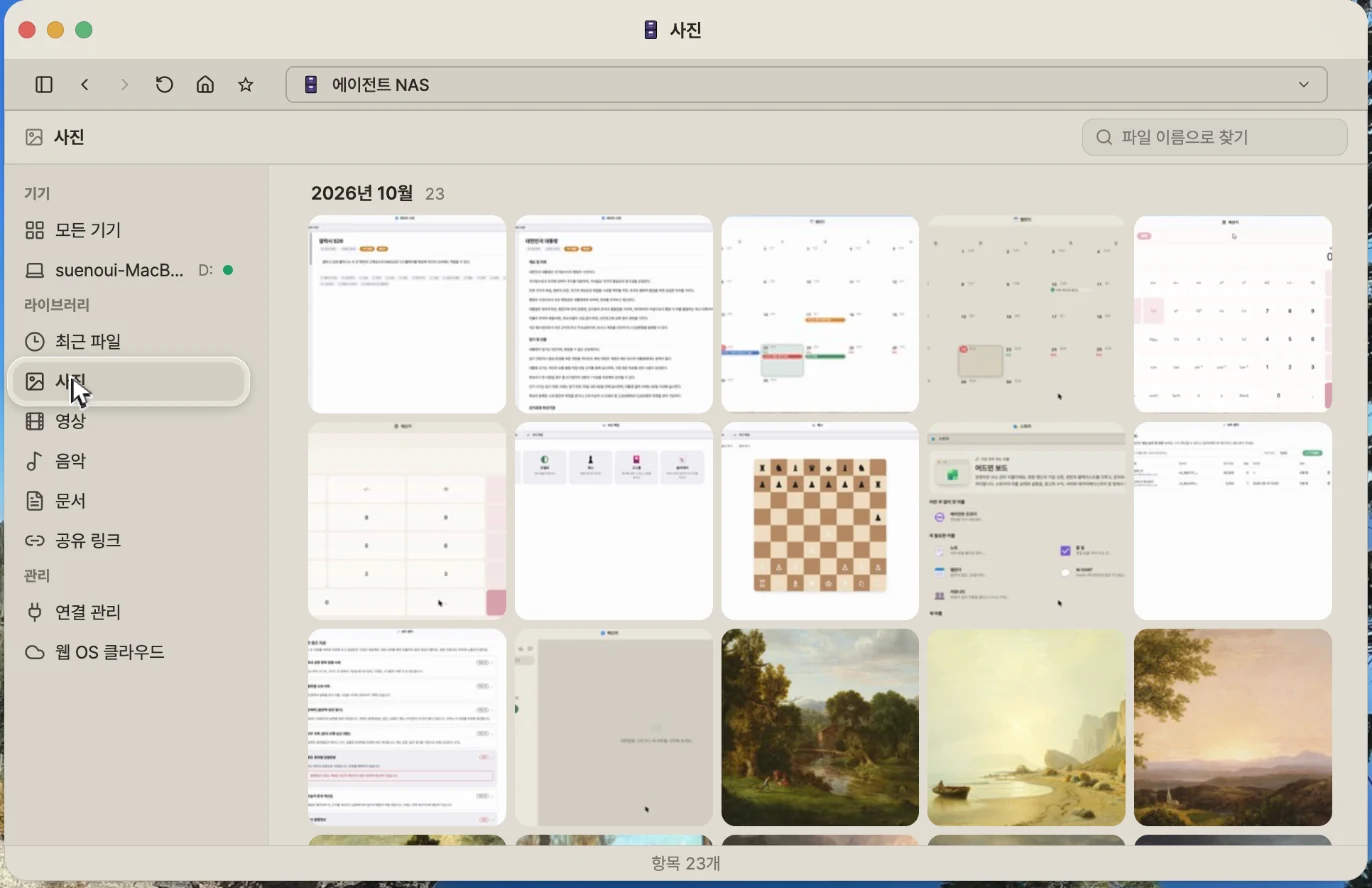
Scattered photos, sorted by month. Photos and videos spread across folders come together in monthly previews, and music plays back to back.
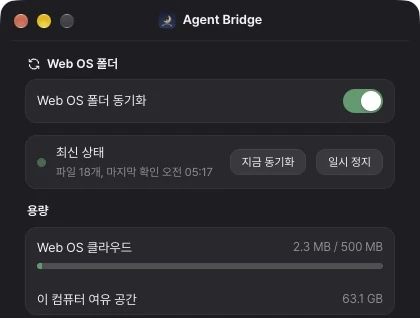
Save on your PC, see it on the web. The “Agent Bridge” folder on your PC stays in sync with Web OS cloud. Save on either side and it shows up on both.
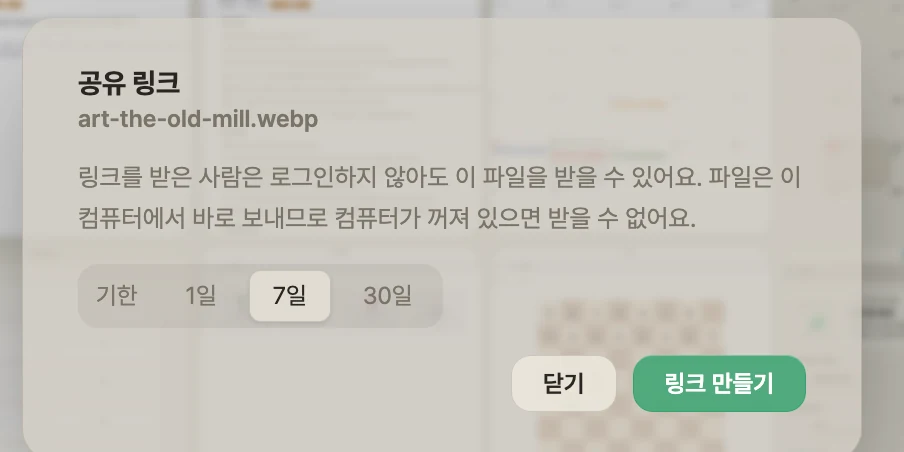
Share links, no sign-up needed. Send files with a link that expires. Recipients don’t need to sign up, and you can revoke the link anytime.
Home and work PCs in one view. Connect your home and work PCs together, then search every PC at once by file name.
How to set up Web OS NAS
Install Agent Bridge
Install Agent Bridge on a Mac or Windows computer at home or work.
Sign in with your Web OS account
Press “Sign in with Web OS to connect” in Agent Bridge, sign in in your browser, then press Connect. On a shared computer, it disconnects when you quit.
Open it from anywhere
Open the Web OS NAS app in Web OS to see that computer and its shared folders.
Works with our other services
File Explorer. Open folders on your home computer while you’re out, and send or receive files.
Office. Edit a home-computer document opened from File Explorer and save it back to its original folder.
Web OS cloud. Documents saved to Web OS cloud also appear in the “Agent Bridge” folder on your home computer.
Leave your home computer on and open it from anywhere
To open it remotely, that computer needs to be on and connected to the internet.